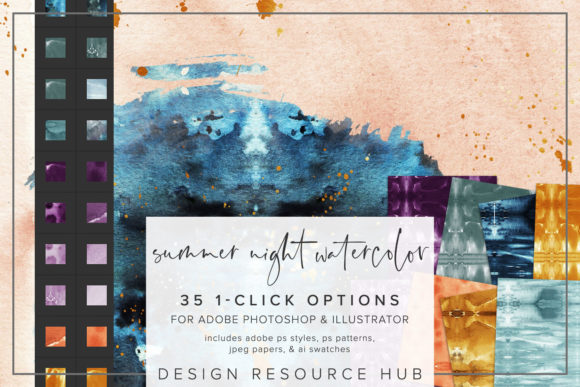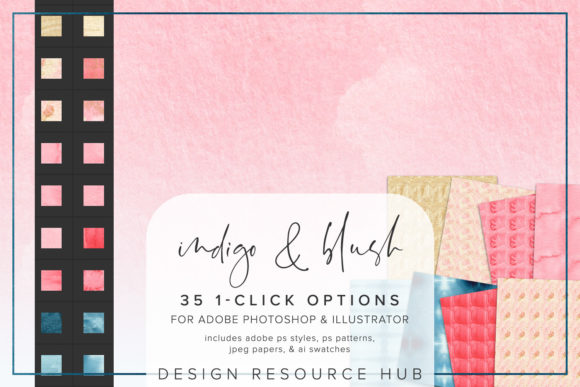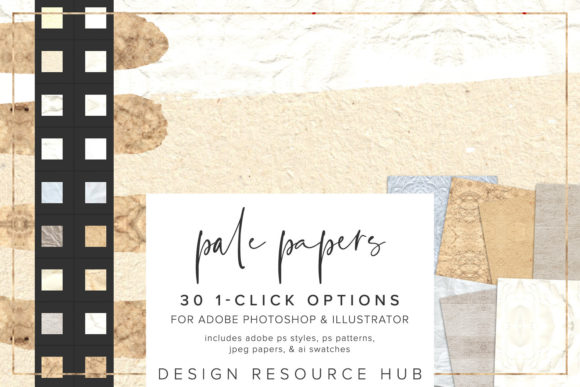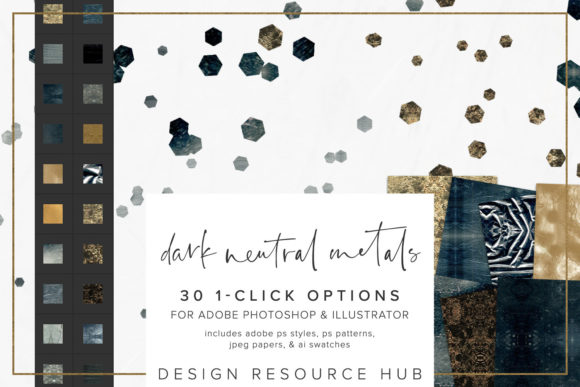
Cool Pastel Watercolor Photoshop Styles
Transforming digital designs into something that feels handcrafted and organic is a common goal for modern creatives. Cool Pastel Watercolor Photoshop Styles offer a streamlined solution to achieve this aesthetic without spending hours painting by hand. This resource is essentially a toolkit of one-click options designed specifically for Adobe Photoshop and Adobe Illustrator. Whether you are a beginner looking to add a touch of elegance to a blog post or a professional designer needing to speed up a branding project, these styles bridge the gap between rigid vector graphics and soft, textured art.
What Are These Digital Art Tools?
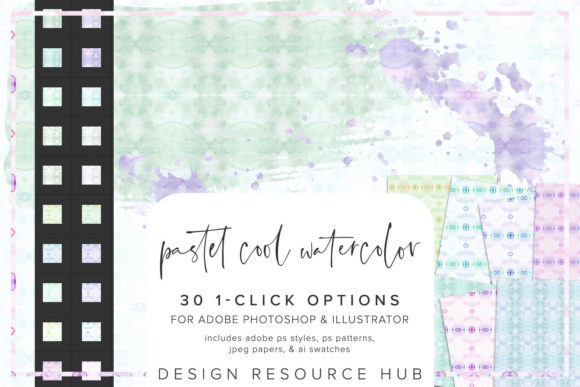
At its core, this set provides pre-configured textures, colors, and effects that mimic the look of watercolor paint on paper. The "Cool Pastel" aspect refers to a specific color palette—think soft blues, gentle lavenders, mint greens, and muted pinks—that creates a calming, sophisticated vibe. Unlike standard flat colors found in default software palettes, these styles introduce depth, grain, and subtle imperfections that make digital elements feel tangible.
The magic lies in the "one-click" functionality. Instead of manually layering brushes, adjusting opacity, and blending modes to simulate watercolor, you simply select an element and apply a style. This efficiency allows you to focus on composition and creativity rather than technical execution. The collection includes various file types tailored to different workflows, ensuring compatibility across the most popular design applications.
Understanding What Is Included
To get the most out of your creative projects, it helps to understand the components of this kit. The package is comprehensive, offering tools for both raster and vector environments:
- Adobe Photoshop .pat file: This contains seamless patterns that can be used as backgrounds or fills. They are ideal for creating large areas of texture without visible repetition.
- Adobe Photoshop .asl file: These are the actual "styles." When loaded, they appear in your Styles panel, ready to be dragged onto text, shapes, or layers to instantly apply complex effects like drop shadows, inner glows, and texture overlays.
- Adobe Illustrator .ai swatch file: For vector designers, this file imports a library of colors directly into your Swatches panel, allowing you to maintain consistent pastel tones across your illustrations.
- JPEG paper files: Sized at 10 x 10 inches, these high-resolution images provide realistic paper textures. You can use them as background layers or blend them with your artwork to ground digital elements in a physical reality.
Practical Applications for Creators
The versatility of Cool Pastel Watercolor Photoshop Styles makes them suitable for a wide range of contexts. In a professional setting, marketers and small business owners often use these assets to create social media graphics that stand out in crowded feeds. A simple logo placed over a watercolor background immediately conveys a sense of artisanal quality, which is particularly effective for brands in wellness, beauty, or lifestyle niches.
For educators and bloggers, these styles can transform dry content into engaging visuals. Imagine using a pastel watercolor effect on headers for an online course or applying the texture to quote graphics shared on Pinterest. The softness of the colors reduces visual fatigue, making long-form content more inviting to read.
Freelancers and hobbyists also benefit significantly. If you are designing invitations, greeting cards, or personalized gifts, these one-click options save valuable time. You can quickly prototype different looks by changing the scale of the patterning or combining different styles until you find the perfect match for your client's vision.
How to Install and Use the Assets
Getting started is straightforward, but following the correct installation steps ensures the tools work seamlessly within your software. The process varies slightly depending on the file type:
- Installing Photoshop Styles (.asl): Open Photoshop and navigate to the Styles panel. Click the menu icon (usually four horizontal lines) and select Import Styles. Locate your downloaded .asl file and load it. The new watercolor effects will now appear in your panel, ready to click onto any layer.
- Installing Patterns (.pat): Go to the Edit menu, select Preset Manager, choose Patterns, and click Load. Alternatively, you can use the Window > Patterns menu to import the .pat file. Once loaded, you can fill shapes or entire canvases with the seamless watercolor texture.
- Installing Illustrator Swatches (.ai): In Illustrator, open the Swatches panel. Click the menu icon and choose Open Swatch Library > Other Library. Select the .ai file to access the curated pastel color palette.
Once installed, the workflow becomes intuitive. You can apply these textures to fonts, borders, and geometric shapes with a single click. For even more dynamic results, try combining the styles with custom brushes. This technique adds a unique, hand-painted edge to your designs while retaining the consistency of the preset colors.
Key Considerations Before You Begin
While these tools are powerful, there are a few things to keep in mind to ensure your final design looks polished. First, consider the context of your audience. While cool pastels are generally safe and appealing, ensure they align with your brand identity. A tech startup might find these too soft, whereas a boutique bakery would thrive with them.
Secondly, pay attention to scalability. The seamless patterns included in the .pat file are designed to repeat without obvious breaks, but if you are working on very large formats, check how the texture scales. Sometimes, adjusting the pattern scale slightly can prevent the texture from looking repetitive or pixelated when printed.
Finally, remember that these styles are meant to enhance, not replace, good design principles. Even with one-click effects, composition, contrast, and typography remain crucial. Use the watercolor textures to support your message, ensuring that text remains legible against the textured backgrounds. By balancing these digital shortcuts with thoughtful design choices, you can create professional-grade artwork that feels both modern and timeless.